

Can car stereo play WAV files? This guide explains how to check your car stereo, prepare WAV files, and get lossless audio in your car. Step-by-step tips and troubleshooting help you play WAV on USB, SD, Bluetooth, or CD-based systems.
Contents
- 1 Key Takeaways
- 2 Introduction
- 3 Step 1: Understand WAV and Why It Matters
- 4 Step 2: Check Your Car Stereo Specifications
- 5 Step 3: Identify Playback Methods (USB, SD, CD, Bluetooth)
- 6 Step 4: Prepare WAV Files Correctly
- 7 Step 5: Convert or Compress If Needed
- 8 Step 6: Copy WAV Files to USB or SD Card
- 9 Step 7: Update Firmware and Software
- 10 Step 8: Test Playback and Fine-Tune
- 11 Troubleshooting: Common Problems and Fixes
- 12 Practical Tips and Examples
- 13 When WAV Is Not an Option
- 14 Safety Notes
- 15 Conclusion
- 16 Author
Key Takeaways
- Point 1: Many modern car stereos can play WAV files via USB or SD, but not all head units support WAV natively.
- Point 2: Check your stereo manual or specs page for WAV support and compatible sample rates and bit depths.
- Point 3: Use a properly formatted USB drive (FAT32/exFAT) and a supported file structure for best results.
- Point 4: If your car can’t play WAV, convert files to MP3 or FLAC, or use a portable player or Bluetooth adapter.
- Point 5: Firmware updates sometimes add WAV support. Keep your stereo firmware current.
- Point 6: Test with short WAV tracks first. Troubleshoot by checking file size, format, and drive format.
Introduction
This guide answers one simple question: can car stereo play WAV files and how to make them play if possible. You will learn how to check your stereo, prepare WAV files, transfer them, and troubleshoot common issues. You will also find model examples and practical tips. The steps are easy. The language is simple. You can follow this in your garage or car.
Step 1: Understand WAV and Why It Matters
The first step is to know what a WAV file is. WAV is a raw, lossless audio format. It keeps full audio quality. That makes file sizes large. It also makes it ideal for high-quality playback. Many audiophiles like WAV for car audio. Now ask yourself: can car stereo play WAV files? The short answer is: some can, many cannot. You need to check specs.
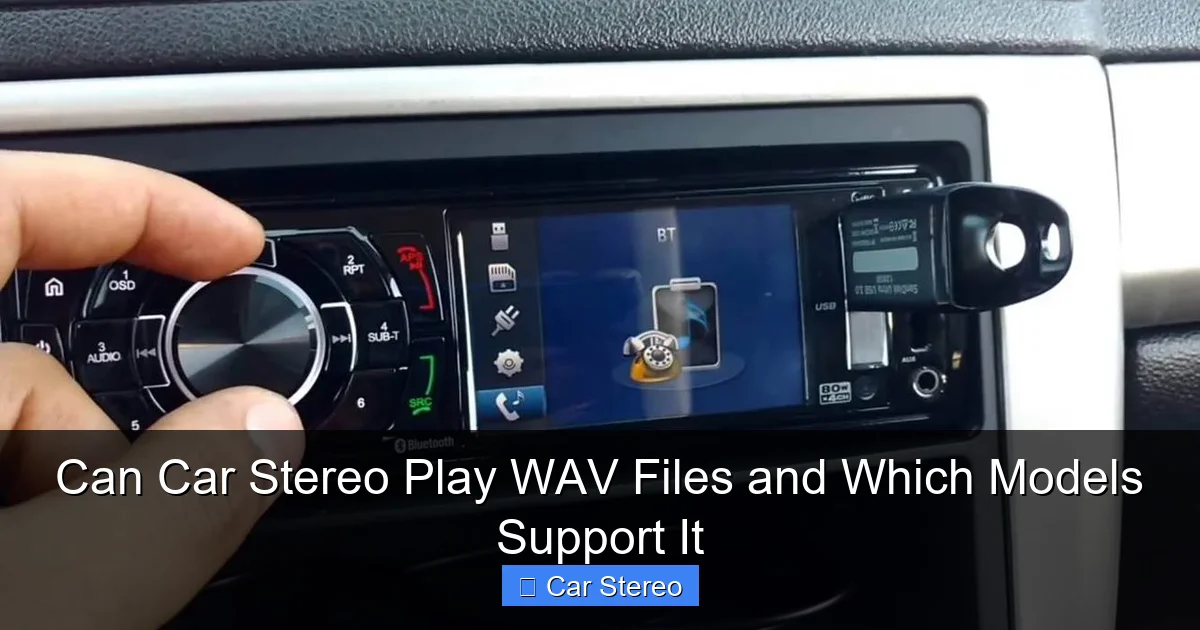
Visual guide about Can Car Stereo Play WAV Files and Which Models Support It
Image source: howstereo.com
What is WAV?
WAV (Waveform Audio File Format) is an uncompressed format. It stores audio in full detail. Typical WAV settings are 44.1 kHz sample rate and 16-bit depth. Higher sample rates like 48 kHz or 96 kHz also exist. The files are big. A 3-minute WAV at 44.1 kHz 16-bit is about 30 MB. At higher rates, the file gets larger.
Why people want WAV in cars
WAV gives clearer highs and deeper detail. You hear more of the original recording. For good car speakers, WAV can make music sound better than MP3. But the difference is small in noisy environments. Still, if you want the best sound, you will ask: can car stereo play WAV files and how to do it right.
Step 2: Check Your Car Stereo Specifications
Not all stereos read WAV. The first place to check is the manual. You can also check the maker’s website. Search the model number plus “supported formats.” When you search, include the phrase: can car stereo play WAV files. This helps you find user forums and guides.
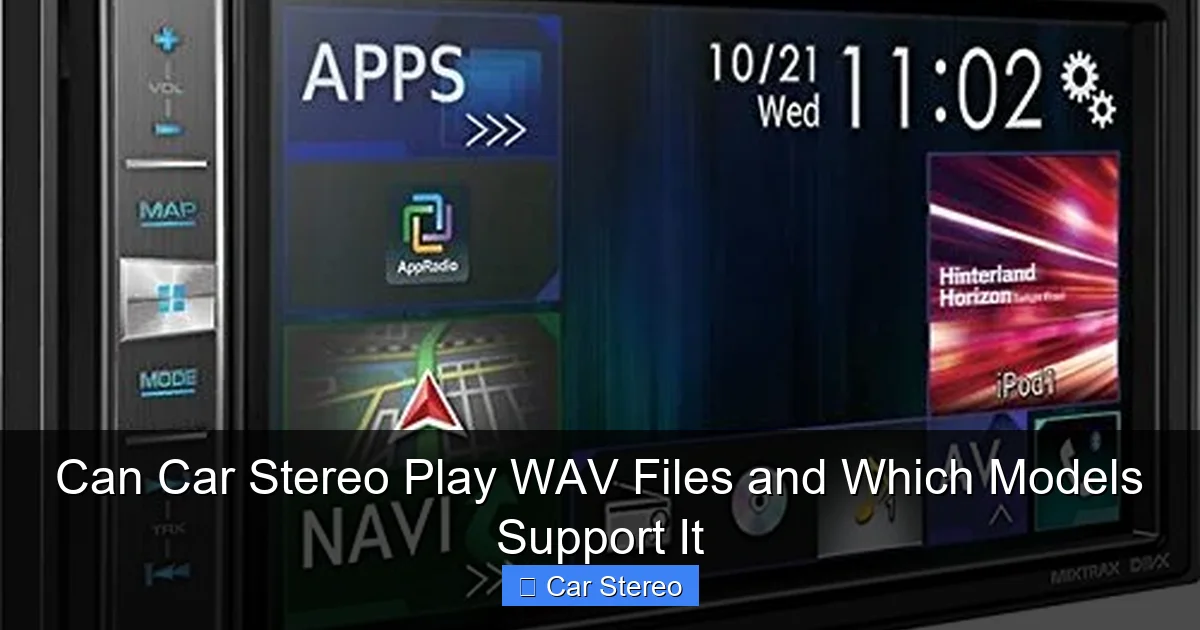
Visual guide about Can Car Stereo Play WAV Files and Which Models Support It
Image source: howstereo.com
Where to find specs
- Owner’s manual booklet in the glove box.
- Manufacturer website support or product page.
- Online forums and car audio communities.
- Retail listings that show supported file types.
Key spec items to look for
Look for these lines in your specs: “WAV support”, “WAV (PCM) 44.1kHz/48kHz/96kHz”, or “WAV (16/24-bit)”. If you see them, your unit can usually play WAV. If you do not see them, the stereo may only support MP3 or WMA. Also check the max file size and max folder depth. These limits affect how many WAV files you can use.
Step 3: Identify Playback Methods (USB, SD, CD, Bluetooth)
There are several ways to play WAV files. Your choice affects compatibility. The main methods are USB drive, SD card, CD, and Bluetooth or wired aux. Ask: can car stereo play WAV files via each method? The answer varies by method and model.
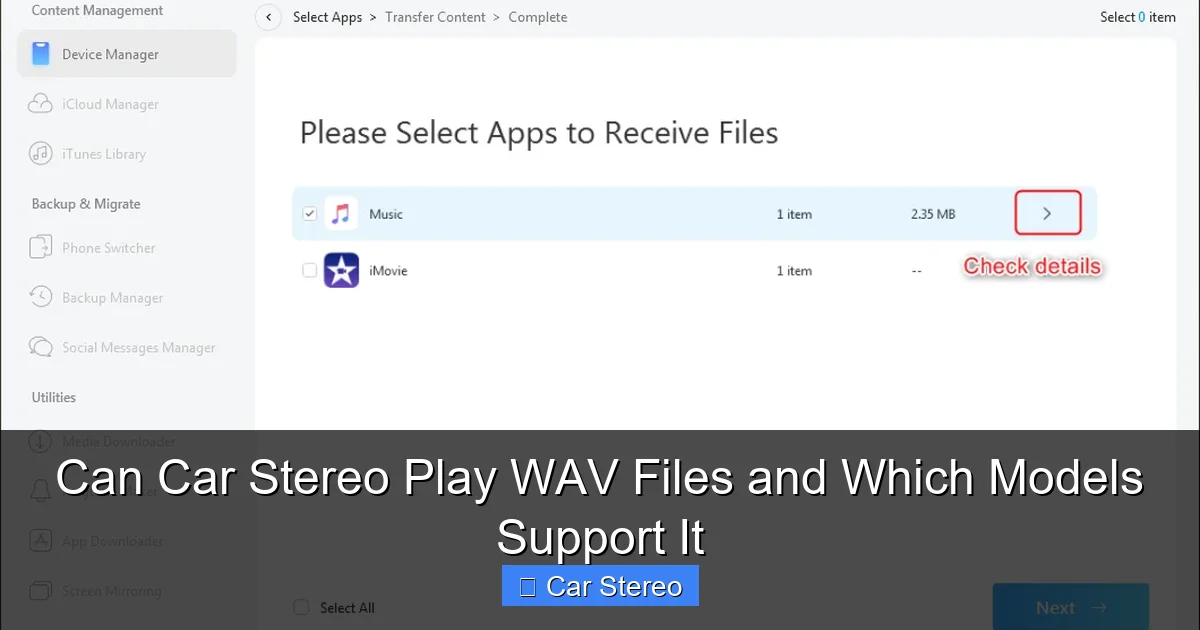
Visual guide about Can Car Stereo Play WAV Files and Which Models Support It
Image source: imobie-resource.com
USB and SD Card
USB is the most common. Many stereos read USB sticks and SD cards. They often support WAV. But check file system limits. Many units only read FAT32. FAT32 limits single file sizes to 4 GB. Most WAV files will be smaller than that. Newer units support exFAT and larger files. Always check the spec.
CD Playback
Your stereo might play WAV on CD. Some units that can play MP3 from CD also read WAV. But not all CD players accept WAV. Burn a CD in the correct format if you try this. Look for “data CD” or “MP3/WAV CD” labels in the manual.
Bluetooth and Wireless
Bluetooth streams audio in a compressed manner. That means WAV is typically converted to a compressed stream. Bluetooth does not transmit native WAV files. If you ask: can car stereo play WAV files over Bluetooth, the answer is effectively no for lossless playback. You can still play WAV via Bluetooth, but it will be compressed and may not keep full quality.
Step 4: Prepare WAV Files Correctly
Format and file properties matter. Many car stereos accept only certain sample rates and bit depths. Preparing files the right way increases the chance of playback. Keep asking: can car stereo play WAV files with these settings? Use common settings to be safe.
Use Standard Sample Rates and Bit Depths
Use 44.1 kHz or 48 kHz. Use 16-bit or 24-bit depth. These settings are widely supported. Higher settings like 96 kHz may not be supported. If your files are odd sample rates, convert them.
File Names and Folder Structure
Keep file names simple. Avoid special characters. Use letters, numbers, dashes, and underscores. Some players choke on long names or deep folder trees. Place files in top-level folders named “MUSIC” or “AUDIO” for best chance of detection.
Check File Size Limits
Older stereos limit file size. If a WAV file is huge, it may not play. Split very long recordings into smaller tracks. Ask: can car stereo play WAV files that are 1 GB in size? Probably not on older units. Keep tracks under a few hundred MB for safety.
Step 5: Convert or Compress If Needed
Not every stereo plays WAV. If yours does not, you can convert. Use conversion only if you accept some quality loss. MP3 is the most compatible. FLAC is lossless and smaller than WAV. Decide: do you want perfect quality or wide compatibility?
Converting to MP3
Use a reliable converter like Audacity, dBpoweramp, or online tools. Choose a high bitrate like 320 kbps. This keeps good quality and high compatibility. If you must ask: can car stereo play WAV files but your unit does not support WAV, convert to MP3.
Converting to FLAC
FLAC is lossless and smaller than WAV. Many modern stereos support FLAC. If your stereo supports FLAC, prefer it over MP3. Convert using tools like fre:ac or foobar2000. If you wonder: can car stereo play WAV files and the answer is no, FLAC may be your best replacement.
Step 6: Copy WAV Files to USB or SD Card
Now you will copy files to a drive. This step is simple. But details matter. The drive format must match your stereo. Use FAT32 for older units and exFAT for modern ones. Use a quality USB stick. Cheap drives can cause read errors.
Prepare the Drive
Format the drive in your computer. Choose FAT32 for wide support. Choose exFAT for large files and modern stereos. Label the drive. Create a top-level folder like MUSIC. Put WAV files into that folder. Avoid nesting too deep.
Safely Eject and Test
Always use “eject” in your OS before removing the drive. This prevents corrupt files. Insert the drive into the car. The unit should index files. If it does not, try different folder names or a different drive.
Step 7: Update Firmware and Software
Firmware updates can add format support. If you ask: can car stereo play WAV files and it’s unclear, check for firmware updates. Visit the manufacturer site. Look for updates that mention audio format support.
How to Update
- Download update file from the manufacturer site.
- Copy the file to a USB stick per instructions.
- Insert the stick in the stereo and follow on-screen steps.
- Do not turn off power during update.
After the update, test WAV playback again. Updates may add WAV, FLAC, or other formats. They may also fix bugs that prevented WAV playback before.
Step 8: Test Playback and Fine-Tune
Test with a few tracks first. Use simple file names. Use both short and long WAV files. Try different bit depths and sample rates. Check playback stability. If tracks stutter or skip, use a smaller or faster USB stick.
What to Check During Test
- Does the stereo see the USB or SD card?
- Are all WAV files visible in the player?
- Do tracks play from the start to end without skipping?
- Is metadata like track name and artist displayed correctly?
If everything plays, congrats. You now have lossless audio in your car. If not, move to troubleshooting.
Troubleshooting: Common Problems and Fixes
Troubles happen. Here are common issues and fixes. Each issue pairs with the question: can car stereo play WAV files? The troubleshooting steps below will help answer that in practice.
Problem: Stereo does not recognize WAV files
Fix 1: Check manual for WAV support. Fix 2: Try a different USB stick. Fix 3: Reformat drive to FAT32 or exFAT. Fix 4: Move files to top-level folder. Fix 5: Rename files with simple names.
Problem: Files skip or stutter
This often means the drive is slow. Use a USB 3.0 stick or a faster SD card. Reformat the drive. Use shorter tracks. Also check for bad sectors by copying files back to PC and playing locally.
Problem: Only some WAV files play
Check sample rate and bit depth. Some units only support 44.1 kHz 16-bit. Convert problem files to a supported format. Test a 44.1 kHz 16-bit WAV first. If that plays, the unit needs standard settings.
Problem: Metadata (tags) not shown
Many stereo players read limited tags. Use ID3 tags or simple folder names for display. Some units do not read tags from WAV files. If display matters, convert to FLAC or MP3 which often support tags better.
Problem: Bluetooth playback is compressed
Bluetooth streams will compress WAV. Use USB or SD for full quality. If you must use Bluetooth, try aptX or AAC if both devices support them. Still, native WAV playback over Bluetooth is not possible in most systems.
Practical Tips and Examples
Here are hands-on tips. They will help you answer: can car stereo play WAV files in real life.
Tip 1: Start small
Copy two or three WAV tracks first. Test them. This is faster than copying thousands of files. It saves time and helps isolate problems.
Tip 2: Use common formats
If you are unsure, use 44.1 kHz 16-bit WAV. This is the safest choice. If you must use higher resolution, check the stereo specs first.
Tip 3: Keep backups
Large WAV libraries take time to create. Keep a backup on an external drive. That way you do not lose your files if a USB stick fails.
Tip 4: Test with different drives
Some car stereos react differently to various drives. If one stick fails, try another brand or capacity. Often a quality brand works where a cheap stick fails.
Examples: Models and WAV Support
Many aftermarket head units from Pioneer, Kenwood, Alpine, and Sony support WAV. Models like recent Pioneer AVH and Kenwood Excelon lines often say “WAV/FLAC support”. Entry-level or older models may only support MP3. Factory stereos vary a lot. Always search your exact model. When you type the search, include: can car stereo play WAV files plus your model number. That brings up model-specific answers.
When WAV Is Not an Option
If your stereo cannot play WAV, you have choices. Convert to MP3 or FLAC. Use a portable player with line-out. Use a USB DAC or dedicated music player with aux connection. If you use an external player, you can still enjoy WAV in the car. Just connect via AUX, USB audio IN (if supported), or a high-quality Bluetooth adapter.
Safety Notes
Do not fiddle with playback while driving. Prepare playlists before you start. Keep copies of firmware instructions. Follow the manufacturer’s update steps carefully. Interrupting an update can brick the unit.
Conclusion
So, can car stereo play WAV files? The answer depends on your stereo. Many modern aftermarket units support WAV via USB or SD. Some factory and older units do not. If your unit supports WAV, prepare files in standard settings and use a reliable USB stick. If not, convert to MP3 or FLAC, or use an external player. Firmware updates and proper drive formats can help. Follow the steps in this guide, and you will know for sure if your car can play WAV files. Enjoy your music.
🎥 Related Video: car sterio wiring diagram #sony #music#xplod #youtube #android #speaker #cars #Dolby #wiring
📺 Kunal Auto
