

Master car stereo Bluetooth iPhone connection with this friendly, step-by-step guide. You will learn how to pair devices, troubleshoot common issues, and enjoy hands-free calls and music in your car.
Contents
- 1 Key Takeaways
- 2 Introduction: What You Will Learn
- 3 Step 1: Prepare Your iPhone and Car Stereo
- 4 Step 2: Pair Your iPhone with the Car Stereo
- 5 Step 3: Enable Hands-Free and Media Access
- 6 Step 4: Fine-Tune Settings for Best Performance
- 7 Step 5: Reconnect Automatically Each Time
- 8 Practical Tips and Examples
- 9 Troubleshooting: Fix Common Problems
- 10 Advanced Tips
- 11 Example Walkthrough: Pairing a Common Aftermarket Stereo
- 12 Safety and Best Practices
- 13 When to Seek Professional Help
- 14 Conclusion: What You Achieved
- 15 Author
Key Takeaways
- Point 1: Ensure Bluetooth is on both devices before pairing to avoid delays.
- Point 2: Place the phone close to the car stereo during initial pairing for best results.
- Point 3: Update iOS and car firmware to fix many connection bugs.
- Point 4: Delete old pairings if you run into repeated connection errors.
- Point 5: Use the car manual for stereo-specific pairing modes and PIN codes.
- Point 6: Test audio and calls after pairing to confirm a full car stereo Bluetooth iPhone connection.
Introduction: What You Will Learn
This guide shows you how to get a reliable car stereo Bluetooth iPhone connection. You will learn clear steps to pair your iPhone. You will learn how to keep the link steady. You will also learn what to do when things go wrong. The steps work for factory and aftermarket car stereos.
Step 1: Prepare Your iPhone and Car Stereo
Preparation saves time. Do these checks first. They make the car stereo Bluetooth iPhone connection smooth and fast.
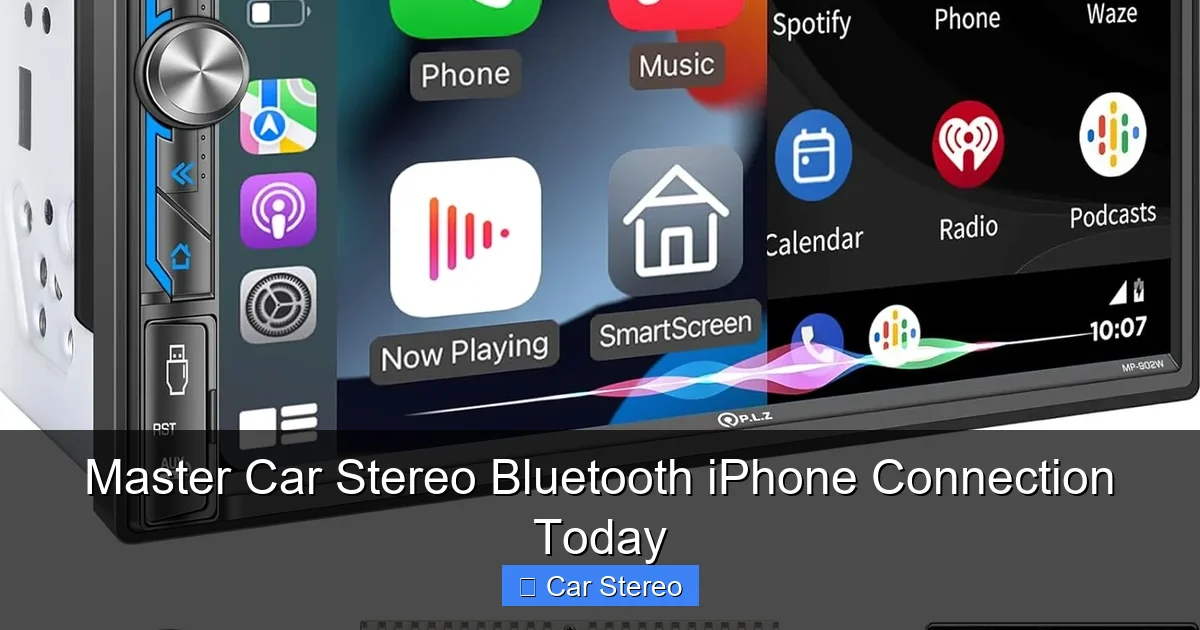
Visual guide about Master Car Stereo Bluetooth iPhone Connection Today
Image source: plz-carstereo.com
1.1 Check iPhone Bluetooth
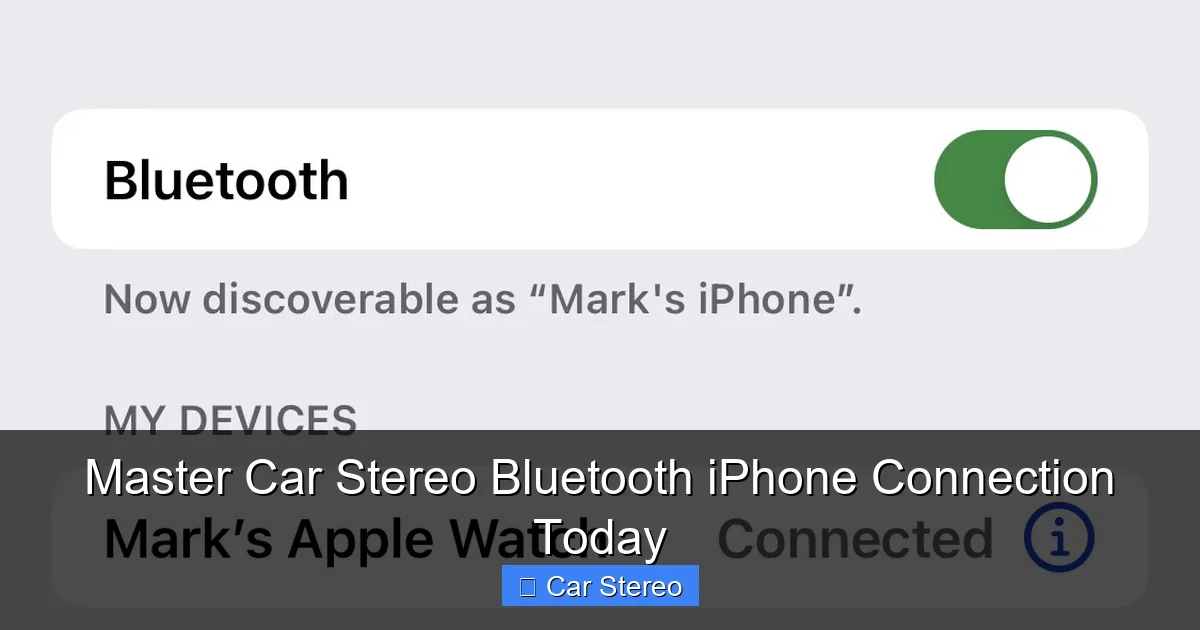
Open Settings. Tap Bluetooth. Turn it on. Keep the screen awake while pairing. This helps the stereo find the phone quickly.
1.2 Set the Car Stereo to Pairing Mode
Turn on the car stereo. Look for “Phone”, “Bluetooth”, or “Pair” in the menu. Many stereos show a Bluetooth icon. Press the correct button to start pairing mode. The display may say “Pairing”, “Searching”, or show a PIN.
1.3 Put Devices Close Together
Bring the iPhone to the center console. Keep it within a few feet. Close range helps the devices see each other. This increases your chance of a fast car stereo Bluetooth iPhone connection.
Step 2: Pair Your iPhone with the Car Stereo
Pairing is the first link. Follow these steps for a clean car stereo Bluetooth iPhone connection.
Visual guide about Master Car Stereo Bluetooth iPhone Connection Today
Image source: androidauthority.com
2.1 Find the Stereo on Your iPhone
On the iPhone Bluetooth screen, look under “Other Devices”. Tap the stereo name when it appears. The name often starts with the car brand or model.
2.2 Confirm PIN or Code
The stereo may show a PIN. Some use 0000 or 1234. Others show a number on both devices. Confirm the code on the iPhone. Tap “Pair” or “Connect”.
2.3 Test the Connection
After pairing, play a song. Make a test call. Ensure both audio and microphone work. This confirms a full car stereo Bluetooth iPhone connection.
Step 3: Enable Hands-Free and Media Access
Many car systems need permission to access contacts and media. Grant access for full use.
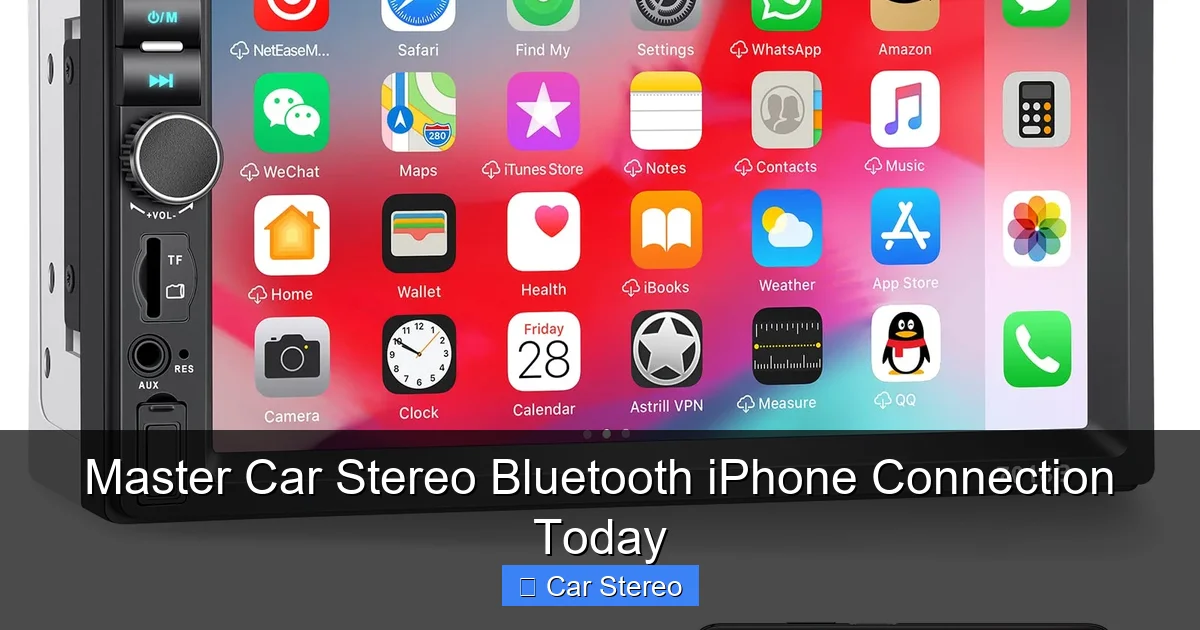
Visual guide about Master Car Stereo Bluetooth iPhone Connection Today
Image source: m.media-amazon.com
3.1 Allow Contacts and Favorites Sync
When the iPhone prompts, tap “Allow” to sync contacts. This enables hands-free calling and caller ID on the stereo.
3.2 Allow Media and Audio Streaming
Tap “OK” when prompted for media access. This lets you stream music, podcasts, and navigation audio from your iPhone through the car stereo.
Step 4: Fine-Tune Settings for Best Performance
Tweaking a few settings makes the car stereo Bluetooth iPhone connection stronger and more reliable.
4.1 Set Stereo as Favorite Device
Some iPhones and stereos let you mark a device as a favorite or trusted. Do this to auto-connect in the future.
4.2 Turn Off Wi-Fi if Interfering
Wi-Fi can sometimes interfere. If you see dropouts, try switching Wi-Fi off on the iPhone temporarily. Test the driving audio again.
4.3 Use Do Not Disturb While Driving
Enable Do Not Disturb While Driving to reduce distractions. Calls and texts still work through the car stereo when allowed. This keeps the car stereo Bluetooth iPhone connection focused on audio and calls only.
Step 5: Reconnect Automatically Each Time
Once paired well, reconnection should be automatic. Here is how to make it reliable.
5.1 Turn On Bluetooth Before Starting the Car
Turn on Bluetooth before you start the engine. If the iPhone is already connected, the stereo usually auto-link. If not, waiting a few seconds after you start helps.
5.2 Use NFC or Apple CarPlay if Available
If your car has NFC, touch the phone to the car’s NFC spot to pair. If Apple CarPlay is built-in, plug in with a cable or use wireless CarPlay. These give a strong car stereo Bluetooth iPhone connection and better control over apps.
Practical Tips and Examples
Here are simple tips you can use right away. They help get and keep a strong car stereo Bluetooth iPhone connection.
- Tip: Restart the iPhone before pairing. A restart clears temporary glitches.
- Tip: Turn the car stereo off and on. This clears the stereo’s Bluetooth cache.
- Example: If your stereo name is generic like “BT_Audio”, try renaming your stereo in its settings for easier recognition.
- Tip: Keep your iPhone’s screen unlocked during initial pairing. Some stereos need the phone unlocked.
- Example: If music plays but calls fail, check the phone audio routing in the call screen. Select “Car Speaker” or the stereo name.
Troubleshooting: Fix Common Problems
If pairing fails, don’t worry. These steps fix most issues. Use them in order for the best results.
Problem 1: Stereo Not Showing on iPhone
Turn Bluetooth off and on. Restart both devices. Move the phone closer. Clear other nearby Bluetooth devices to reduce confusion. Put the stereo back into pairing mode. Try again to establish the car stereo Bluetooth iPhone connection.
Problem 2: Connected but No Sound
Check the iPhone audio output. Open Control Center. Tap the AirPlay icon and pick the car stereo. Check the car volume. Ensure the stereo source is set to Bluetooth. If music still fails, restart the app and the stereo.
Problem 3: Calls Drop or Mic Not Working
Check microphone permissions on the iPhone. Go to Settings > Privacy > Microphone. Give permission to the necessary apps if required. Also check the stereo’s microphone is not muted and the mic input is set to the car’s mic, not the phone.
Problem 4: Repeated Pairing Errors
Delete the stereo from the iPhone Bluetooth list. On the iPhone, tap the info icon next to the device and choose “Forget This Device”. On the stereo, clear pairings if possible. Then pair fresh. This often resets mismatched handshake data and restores a clean car stereo Bluetooth iPhone connection.
Problem 5: Intermittent Dropouts
Interference can cause drops. Move your iPhone away from other wireless devices. Turn off Wi-Fi or other Bluetooth devices. Update the stereo firmware. If the car still drops, try pairing a different phone. This helps isolate if the phone or stereo is the issue.
Advanced Tips
For tech-savvy users, try these steps to boost performance and features for a car stereo Bluetooth iPhone connection.
Update Firmware and iOS
Check the car maker or stereo maker for firmware updates. Install updates per instructions. Also keep iOS updated. New software often fixes connectivity bugs and adds compatibility.
Use Bluetooth Codecs Where Supported
Some stereos support advanced codecs. These can improve audio quality. If your stereo and iPhone support AAC or aptX, they may auto-select the best codec. Check the stereo manual for settings to prefer high-quality streaming.
Limit Paired Devices
Some stereos only handle a small number of pairings. Remove old entries. This frees slots for new devices and avoids confusion that breaks the car stereo Bluetooth iPhone connection.
Example Walkthrough: Pairing a Common Aftermarket Stereo
Here is a quick example. It shows step-by-step pairing with many aftermarket stereos. Follow it to pair fast.
- Turn the stereo on. Press the “Menu” button.
- Select “Bluetooth”. Choose “Pair” or “Add Device”.
- Open iPhone Settings > Bluetooth. Look for the stereo name like “Pioneer DEH-…” or “Kenwood BT”.
- Tap the name. Confirm the code if prompted. Tap “Pair”.
- Allow contacts and media. Play audio to confirm the car stereo Bluetooth iPhone connection.
Safety and Best Practices
Always pair while parked. Do not fiddle with settings while driving. Use voice commands when possible. Keep the phone in a stable mount. This keeps you safe and keeps the car stereo Bluetooth iPhone connection stable during drive time.
When to Seek Professional Help
If you try all steps and the stereo still fails, the issue may be hardware or firmware. Contact your car dealer or the stereo maker. If the stereo is older, consider replacing it with a modern head unit that supports Apple CarPlay or better Bluetooth profiles for a more reliable car stereo Bluetooth iPhone connection.
Conclusion: What You Achieved
You now know how to get a reliable car stereo Bluetooth iPhone connection. You learned how to prepare devices, pair, grant permissions, and fix common issues. You learned tips to boost audio quality and stability. Follow these steps and you will enjoy hands-free calls and streaming music. Drive safe and enjoy your sound.
🎥 Related Video: How to change the CarPlay audio output channel on your iPhone if your CarPlay no sound
📺 Seven Smart Auto
This video usually suits aftermarket/retrofitted CarPlay devices.
