

Learn how to use OBD2 scanner app at home quickly. This guide shows simple steps to connect an OBD2 adapter, read and clear codes, view live data, and troubleshoot. Start diagnosing your car today with clear instructions and practical tips.
Contents
- 1 Key Takeaways
- 2 Introduction: What you will learn
- 3 What you need before you start
- 4 Step 1: Choose the right OBD2 adapter
- 5 Step 2: Pick and install an app
- 6 Step 3: Find and plug in the OBD2 port
- 7 Step 4: Pair the adapter with your device
- 8 Step 5: Start the app and connect to the car
- 9 Step 6: Read and understand trouble codes (DTCs)
- 10 Step 7: View live data and graphs
- 11 Step 8: Clear codes and test
- 12 Step 9: Use advanced features
- 13 Practical tips and examples
- 14 Troubleshooting common issues
- 15 Safety tips and best practices
- 16 Maintenance and storage
- 17 When to see a professional
- 18 Conclusion
Key Takeaways
- Point 1: You need an OBD2 adapter and a compatible phone or tablet to get started.
- Point 2: Download a reliable app and pair it with the adapter before connecting to your car.
- Point 3: Reading DTCs (codes) is quick; learn common codes and what actions to take.
- Point 4: Live data helps you spot sensor issues without a trip to the shop.
- Point 5: Clearing codes is simple, but fix the cause first or the light will return.
- Point 6: Use basic troubleshooting steps when the app won’t connect or shows errors.
Introduction: What you will learn
This guide teaches how to use OBD2 scanner app at home in easy steps. You will learn what gear to buy. You will learn how to connect the adapter. You will learn how to read codes. You will learn how to view live data. You will learn how to clear codes and troubleshoot common problems. The goal is simple: help you diagnose basic car faults. You will save time and money. The steps are safe and easy to follow.
What you need before you start
Before you learn how to use OBD2 scanner app, gather a few items. Keep things simple. Here is a checklist:
Visual guide about Easy Guide on How to Use OBD2 Scanner App at Home Quickly
Image source: s1.cdn.autoevolution.com
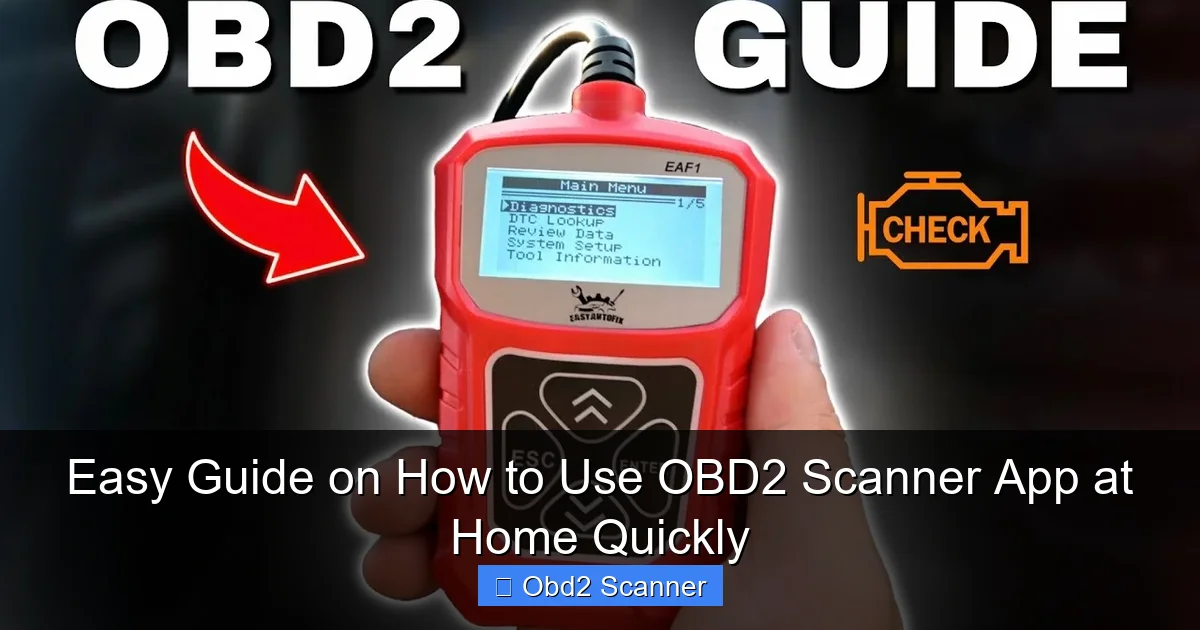
- OBD2 adapter: Bluetooth, Wi‑Fi, or USB dongle.
- Phone or tablet: Android or iOS device with Bluetooth/Wi‑Fi.
- OBD2 app: A compatible app such as Torque, Car Scanner, BlueDriver, or OBD Auto Doctor.
- Car manual: Optional but useful to locate the port and learn safety tips.
- Basic tools: A flashlight and a pen to note codes.
With these items you can practice how to use OBD2 scanner app at home, in your driveway, or in the garage.
Step 1: Choose the right OBD2 adapter
Choosing the right adapter is step one when learning how to use OBD2 scanner app. Not all adapters work the same. Pick one that matches your phone and your car.
Visual guide about Easy Guide on How to Use OBD2 Scanner App at Home Quickly
Image source: cdn.shopify.com
Bluetooth (classic) adapters
These are cheap. They work well with many Android apps. They may not work with iPhones. Use Bluetooth adapters if you have an Android phone.
Bluetooth Low Energy (BLE) adapters
BLE works with recent apps and some iPhones. They are more reliable than classic Bluetooth. They pair easily. Consider BLE for newer phones.
Wi‑Fi adapters
Wi‑Fi adapters create a hotspot. They work with iPhone and Android. Setup may require entering an IP address in the app. They are slightly slower to connect but broadly compatible.
USB adapters
USB gives a wired connection. You need an OTG cable for Android. Rarely used with phones but great for laptops. Choose USB if you plan to use a laptop-based program.
Step 2: Pick and install an app
Next, install an app. This step is key in learning how to use OBD2 scanner app. Pick one that fits your needs. Some apps are free. Some offer paid features.
Visual guide about Easy Guide on How to Use OBD2 Scanner App at Home Quickly
Image source: i.ytimg.com
Recommended apps
- Torque (Android): Lots of features and customizable dashboards.
- Car Scanner: Cross-platform and user friendly.
- OBD Auto Doctor: Clean interface and reliable data.
- BlueDriver: Works with BlueDriver adapter. Good for code definitions and repair reports.
- FIXD: Simple and helpful for beginners.
How to install
Open the App Store or Google Play. Search the app name. Tap install. Allow any permissions it asks for. Grant location for Bluetooth on Android if required. After install, open the app and follow initial setup prompts. This is a basic part of learning how to use OBD2 scanner app.
Step 3: Find and plug in the OBD2 port
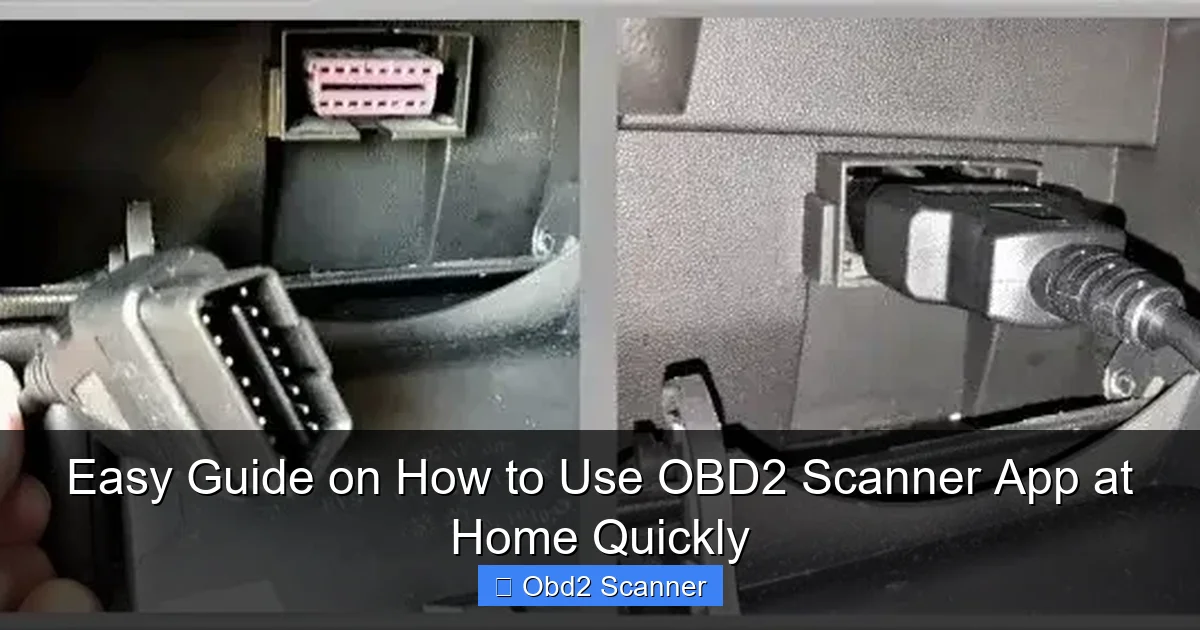
Locate the OBD2 port in your car. Most ports are under the dash on the driver’s side. Some cars place it near the center console. Use a flashlight if needed.
How to find the port
- Look under the steering wheel behind a trim panel.
- Check near the fuse box or the center console.
- Refer to the car manual if you can’t find it.
Plugging in the adapter
Turn the ignition to the “ON” position. Do not start the engine unless the app asks you to. Insert the adapter into the port firmly. The adapter lights will usually blink. This step is key to learn how to use OBD2 scanner app.
Step 4: Pair the adapter with your device
Now connect your phone. Pairing differs by adapter type. The app will often guide you. Follow these tips to pair fast.
Pair Bluetooth classic
- Open Bluetooth settings on your phone.
- Search for new devices.
- Select the adapter name (often ELM327).
- Enter PIN 1234 or 0000 if prompted.
- Open the app and select the Bluetooth device from app settings.
Pair Bluetooth LE and Wi‑Fi
For BLE, use the app’s built-in connect feature. For Wi‑Fi, connect to the adapter hotspot in your Wi‑Fi settings. Enter the adapter password (check manual). Then open the app and select the Wi‑Fi adapter.
USB connection
Plug the adapter into the port and connect the USB to your device with OTG. The app should detect the adapter. Choose USB mode in the app if needed.
Step 5: Start the app and connect to the car
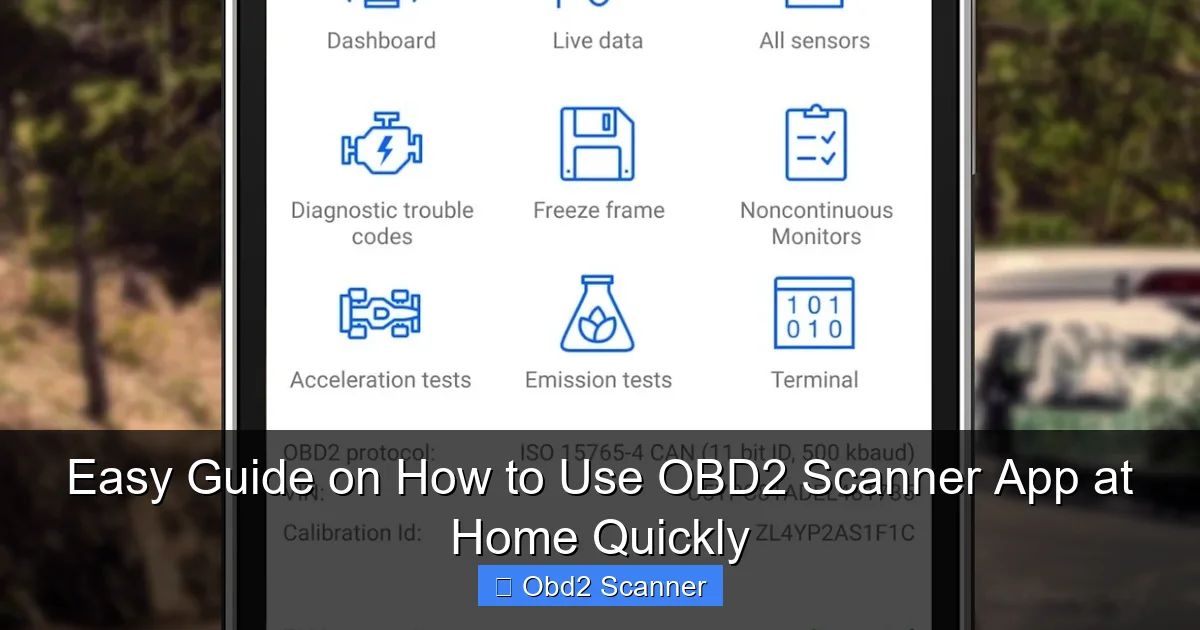
Open the OBD2 app. Choose the connection type (Bluetooth, Wi‑Fi, USB). Tap Connect. The app will talk to the car’s computer. This step shows exactly how to use OBD2 scanner app to read information.
First handshake
The app retrieves the vehicle ID, VIN, and protocol. Wait patiently. It may take 10–30 seconds. If it fails, check the adapter and restart the app.
Permissions and settings
Allow any permissions the app requests. Grant location on Android for Bluetooth scanning. Set the correct adapter type in the app settings if asked.
Step 6: Read and understand trouble codes (DTCs)
Once connected, you can read Diagnostic Trouble Codes. This is one of the most useful steps in learning how to use OBD2 scanner app.
Read codes
- Tap “Read Codes” or “DTC”.
- The app lists active and pending codes.
- Each code looks like P0123 or P0420.
- Tap a code to see a definition in many apps.
Common examples
P0300 = Random misfire. P0420 = Catalyst system efficiency below threshold. P0171 = System too lean (Bank 1). These codes point you toward likely parts or systems to check.
How to act on codes
Use the code to guide your next step. Simple issues like loose gas caps can trip codes. More complex codes may need sensors, spark plugs, or catalytic converter checks. If unsure, take the code to a trusted mechanic. The code helps you start the conversation.
Step 7: View live data and graphs
Live data shows how sensors behave in real time. This step is key to learn deeper how to use OBD2 scanner app skills. Live data helps diagnose running issues.
Useful live data parameters
- RPM
- Speed
- Intake air temp
- Coolant temp
- Short and long term fuel trims
- O2 sensor voltages
How to use live data
Open the live data screen. Select the PIDs you want. Watch values while you start the engine and while it idles. Compare values to normal ranges. Use graphs to see spikes and trends. This helps spot bad sensors and intermittent faults.
Step 8: Clear codes and test
After fixing an issue, you can clear codes from the app. This is part of learning how to use OBD2 scanner app responsibly.
How to clear codes
- Tap “Clear Codes” or “Erase DTCs”.
- Confirm the action.
- The app sends a command to erase codes from the PCM.
Important note
Clearing codes does not fix the issue. If the fault still exists, the light usually returns. Use clearing as a test after repair. Run the car and drive to see if the code returns.
Step 9: Use advanced features
Many apps offer extra tools. These help when you want more than basic scans. Advanced use expands what you can do at home with an OBD2 app.
Service and reset functions
Some apps can reset oil change reminders and service lights. Not all cars support this. Check app compatibility first.
Readiness monitors
Readiness monitors tell if emissions systems are checked. They must be “ready” for many inspections. Use the app to check readiness if you plan an emissions test.
Freeze frame and snapshot
Freeze frame captures data when the code set. It shows conditions at the moment of failure. This is helpful for diagnosing intermittent faults.
Practical tips and examples
Here are tips that make learning how to use OBD2 scanner app faster and easier. Follow these for best results.
- Start with key on, engine off: Many scans work with the key at ON. Some live data requires the engine running.
- Note codes: Write down codes before clearing them.
- Use repair guides: Pair DTCs with reliable repair guides or forums.
- Test after repair: Clear codes and drive for 10–20 minutes to confirm the fix.
- Keep adapter firmware updated: Check the adapter maker’s site for firmware and app updates.
- Use screenshots: Capture code screens to share with mechanics.
Example scenario: The check engine light is on. You learn how to use OBD2 scanner app. You read code P0302 (cylinder 2 misfire). You check spark plug and coil for cylinder 2. You replace the faulty coil. You clear the code and drive. The light stays off. Problem solved at home.
Troubleshooting common issues
Problems happen. Here are common issues and quick fixes while learning how to use OBD2 scanner app.
No connection between app and adapter
- Turn the adapter off and on.
- Restart your phone or tablet.
- Check Bluetooth/Wi‑Fi is enabled.
- Forget the device in Bluetooth settings and re‑pair.
- Use the correct PIN like 1234 or 0000 for older adapters.
App cannot read codes
- Make sure the ignition is ON.
- Try a different app to rule out app issues.
- Ensure the vehicle supports OBD2 (most 1996+ in US).
Wrong or garbled data
- Check adapter compatibility with your car’s protocol.
- Try a different adapter if data is inconsistent.
- Update app and adapter firmware if available.
Codes won’t clear or light returns
- Fix the underlying fault before clearing codes.
- Clear codes, then drive to allow monitors to run.
- If the light returns, read new or pending codes for clues.
App shows “No PID support” or missing sensors
- Not all cars provide all PIDs. Older cars or manufacturer-specific systems may be limited.
- Try a more advanced paid app or a professional scan tool for deeper access.
Safety tips and best practices
Safety matters. Follow these rules while you learn how to use OBD2 scanner app.
- Park the car on level ground and set the parking brake.
- Use the handbrake and wheel chocks if needed for tests while running.
- Avoid loose clothing or jewelry when working near moving parts.
- Keep the adapter dry and store it out of direct sunlight.
- Don’t attempt repairs beyond your skill level. Use a mechanic for complex issues.
Maintenance and storage
Take care of your adapter and apps. Simple steps keep things ready the next time you practice how to use OBD2 scanner app.
- Keep the adapter plugged in snugly but remove it after use if you drive often.
- Store the adapter in a small pouch to prevent dust buildup.
- Update apps and adapter firmware regularly.
- Backup or note common codes that show up for your vehicle.
When to see a professional
Some problems need a shop. If you see codes that point to major parts like the transmission, catalytic converter, or complex electrical faults, visit a professional. Use the app results to give the mechanic a head start. This saves time and money.
Conclusion
Now you know how to use OBD2 scanner app at home quickly. You learned what gear to buy. You learned how to connect and pair. You know how to read codes and view live data. You know how to clear codes and check readiness. You also reviewed troubleshooting and safety tips. Start with simple scans. Practice in your driveway. Share code screenshots with a mechanic when needed. With time, you will spot more issues early. That helps you save money and avoid surprises on the road.