

Why OBD scanner is not working covers the most common causes and simple fixes you can do at home. This guide walks you through checks, steps, and troubleshooting so you can get your OBD2 scanner reading codes fast.
Contents
- 1 Key Takeaways
- 2 Introduction
- 3 Step 1 — Quick checks: power and ignition
- 4 Step 2 — Verify physical connection
- 5 Step 3 — Confirm compatibility
- 6 Step 4 — Bluetooth and Wi‑Fi pairing and drivers
- 7 Step 5 — Software and firmware updates
- 8 Step 6 — Test with a known-good device
- 9 Step 7 — Advanced vehicle checks
- 10 Troubleshooting common error messages
- 11 Practical tips and examples
- 12 When to see a mechanic
- 13 Preventive maintenance
- 14 Common myths and facts
- 15 Quick checklist you can follow now
- 16 Strong conclusion
- 17 Author
Key Takeaways
- Check the basics: Power, connection, and car ignition state are the top reasons an OBD scanner won’t connect.
- Confirm compatibility: Not all scanners support all vehicles or protocols. Verify OBD2 compatibility with your car year and protocol.
- Inspect hardware: Damaged pins, bent connector, or loose cables can stop communication.
- Update software: Old apps, firmware, or drivers often block a scanner from working correctly.
- Test with another device: Use a different scanner or app to isolate the problem.
- Reset and re-pair: Reboot, factory reset, or re-pair Bluetooth/Wi‑Fi adapters to fix many connection issues.
- Seek professional help: If basic fixes fail, consult a mechanic or dealer for vehicle-side faults or ECU issues.
Introduction
This how-to guide explains why obd scanner is not working and how to fix it fast. You will learn a clear checklist. You will follow simple tests. You will get quick fixes and longer fixes. The steps work for wired, Bluetooth, and Wi‑Fi OBD2 scanners.
The tips use plain language. The steps are short. If you follow them in order, you will save time and money. Let’s start with the basics and move to advanced fixes.
Step 1 — Quick checks: power and ignition
Start simple. Most problems are small. These quick checks fix many cases of why obd scanner is not working.
Visual guide about Why OBD Scanner Is Not Working and How to Fix It Fast
Image source: whyisitnotworking.com
1.1 Check ignition state
Turn the key to the ON position. Do not start the engine unless the manual asks you to. Many scanners need ignition ON to read data.
1.2 Check scanner power and LEDs
Look at the scanner lights. Wired scanners get power from the OBD port. Bluetooth and Wi‑Fi modules usually show a power LED. If no light shows, test the port.
1.3 Test the OBD port for power
Use a small test light or a multimeter. Pin 16 supplies battery power. If there is no 12V on pin 16, the car fuse may be blown. Replace the fuse and test again.
1.4 Check the fuse
Locate the interior fuse box. Replace the fuse linked to the OBD port or accessory power. A blown fuse is a common answer to why obd scanner is not working.
Step 2 — Verify physical connection
A bad connection stops communication. These checks catch bent pins, dirt, or loose fit.
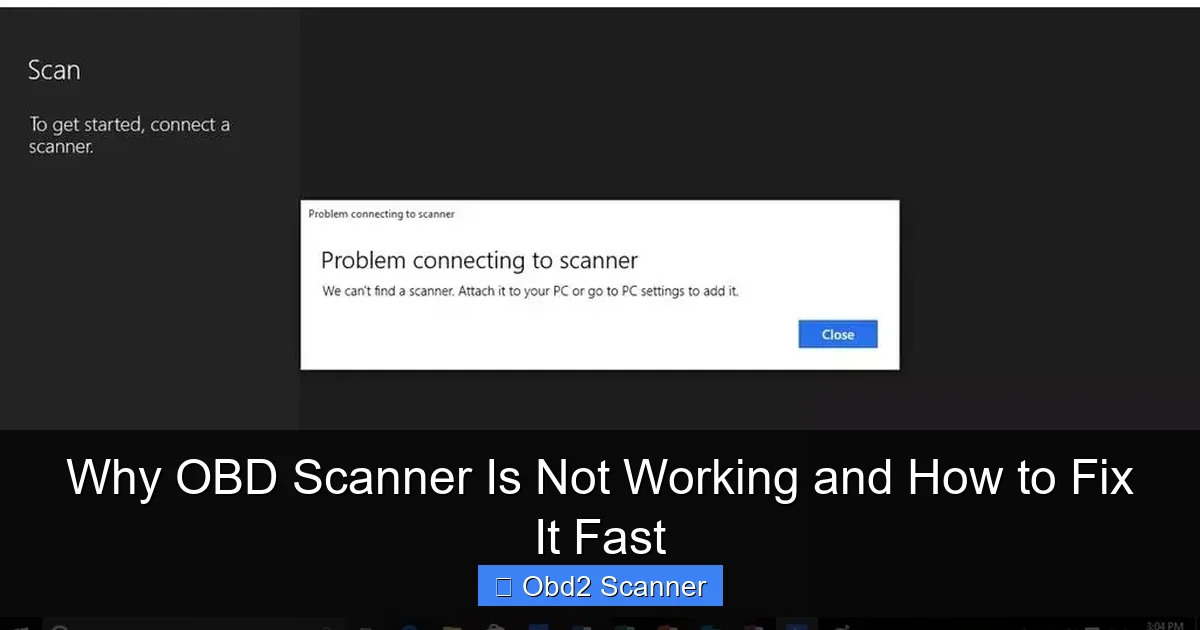
Visual guide about Why OBD Scanner Is Not Working and How to Fix It Fast
Image source: richannel.org
2.1 Inspect the OBD port
Look inside the port. Clean any dirt. Use a dry brush. Do not push metal tools into the port. Bent pins or corrosion will block the signal.
2.2 Inspect the scanner connector
Look at the scanner plug. Bent or broken pins on the plug can stop data flow. Swap cables if your scanner uses one.
2.3 Wiggle test
Plug in the scanner and gently wiggle the connector. If the scanner connects and disconnects, the plug or port is loose. Replace the cable or repair the port.
Step 3 — Confirm compatibility
Not all cars and scanners match. This is a big cause of why obd scanner is not working. Check the car year and protocol.
Visual guide about Why OBD Scanner Is Not Working and How to Fix It Fast
Image source: guidingtech.com
3.1 Check vehicle OBD standard
Most cars from 1996 (US) and later use OBD2. Some older cars use OBD1 or manufacturer-specific systems. Your scanner must support the vehicle’s protocol (CAN, ISO, KWP, etc.).
3.2 Check scanner support
Read the scanner manual. Check the website. Many cheap scanners only support certain protocols. Make sure your scanner lists your vehicle make and year.
3.3 Use the right app
Bluetooth and Wi‑Fi ELM327 adapters require a compatible app. Use the recommended app. Some apps work only on certain platforms (Android or iOS). Using the wrong app explains many cases of why obd scanner is not working.
Step 4 — Bluetooth and Wi‑Fi pairing and drivers
Wireless adapters add a step. Pairing and drivers often cause problems. Follow these sub-steps when your scanner uses wireless links.
4.1 Turn on Bluetooth/Wi‑Fi on your phone
Open your phone settings. Turn on Bluetooth or Wi‑Fi. Do not pair in the device menu of the app unless instructed.
4.2 Pair or connect to the adapter
Find the adapter in the device list. For ELM327 clones, common default PINs are 1234 or 0000. Pair once. If pairing fails, try turning Bluetooth off and on.
4.3 Grant app permissions
Some apps need location or file permissions to scan. Grant required permissions. Missing permissions can explain why obd scanner is not working with some apps.
4.4 Reinstall drivers on PC
If you use a PC, install the correct USB or serial driver. Many adapters use FTDI or CH340 chips. Install the driver from the adapter maker or a trusted source.
Step 5 — Software and firmware updates
Outdated apps or firmware block communication. Updating often fixes bugs that lead to why obd scanner is not working.
5.1 Update the app
Open the app store. Update your OBD app. Reboot your device after updating.
5.2 Update scanner firmware
Some scanners accept firmware updates. Follow the maker’s instructions. Firmware updates fix protocol bugs and add stability.
5.3 Update vehicle modules
Rarely, a car ECU needs an update. This is best handled by a dealer or a shop. If multiple scanners fail, the vehicle module may be the issue.
Step 6 — Test with a known-good device
Using another scanner narrows the issue. This step finds if the problem is the scanner or the car.
6.1 Borrow or buy a basic scanner
Buy or borrow a cheap code reader. Plug it in. If it works, your original scanner is the problem.
6.2 Use a different app
If your hardware is fine, try a different app. Some apps support more protocols or adapt to quirks better.
6.3 Test on another car
Plug the scanner into a different car. If it works elsewhere, the problem likely is in your car.
Step 7 — Advanced vehicle checks
If basic tests fail, the vehicle may block the scanner. These checks help you decide if you need a pro.
7.1 Battery voltage
Low battery voltage can stop data. Check battery voltage. A weak battery may allow lights but not stable communication.
7.2 Keyless systems and accessory modes
Some cars need special steps to power the OBD module. Check the manual for the exact ignition sequence. Manufacturing quirks often explain why obd scanner is not working.
7.3 ECU sleep mode
Some ECUs go to sleep quickly. Wake the car by opening doors or pressing the brake. Wait a minute and try again.
Troubleshooting common error messages
Here are common messages and what to do. These quick fixes address many cases of why obd scanner is not working.
Error: “No communication”
- Check power on pin 16.
- Check the fuse for OBD power.
- Try a different scanner.
Error: “Unable to connect” or “Connection timed out”
- Confirm ignition is ON.
- Re-pair Bluetooth or Wi‑Fi adapter.
- Try different baud rates if your app allows it.
Error: “Permission denied” or app crashes
- Grant app permissions (location, storage).
- Restart the phone or tablet.
- Reinstall the app.
Error: “Unknown protocol” or garbled data
- Try manual protocol selection in the app.
- Update firmware or app.
- Use a scanner with broader protocol support.
Practical tips and examples
Here are simple tips. Use them with your tests. These tips solve many real-life problems related to why obd scanner is not working.
Tip 1 — Keep a small toolkit
Carry a fuse puller, a set of fuses, a small LED test light, and a multimeter. These tools make fast fixes possible.
Tip 2 — Note your scanner’s behavior
Write down LEDs, error messages, and the exact steps you tried. This helps a mechanic diagnose the issue faster.
Tip 3 — Use quality adapters
Cheap clones can be flaky. Spend a bit more on a known brand. Good adapters and cables reduce headaches and answer many cases of why obd scanner is not working.
Tip 4 — Pairing sequence matters
On some phones, you must pair the adapter in system settings before opening the app. Try both orders if you have trouble.
Example: My scanner won’t connect but another does
If a borrowed scanner works but yours fails, try these steps: update your scanner firmware, reinstall the app, reset the scanner to factory defaults, and replace the cable. Often a cable or firmware fix solves the issue.
When to see a mechanic
Some faults are not user-fixable. See a mechanic if:
- The OBD port has no power after you check fuses.
- Multiple scanners fail on the same car.
- The ECU or other modules show internal faults.
- There is evidence of wiring damage or water intrusion.
A shop can test the vehicle wiring and ECU with professional tools. They can trace faults that home checks cannot find. This avoids wasted time and parts.
Preventive maintenance
Good care reduces future issues with OBD scanners. These steps keep the port and scanner reliable and reduce cases of why obd scanner is not working.
- Keep the port covered when not in use.
- Avoid pushing tools or metal objects into the port.
- Store your scanner in a dry place.
- Update apps and firmware regularly.
- Use a dedicated fuse for accessories if you retrofit parts.
Common myths and facts
Myth: “All OBD2 scanners work on all cars.” Fact: Not true. Check protocol support. This clears many cases of why obd scanner is not working.
Myth: “Cheap adapters are fine.” Fact: Cheap adapters may fail and cause odd errors. Buy a reliable brand when you need stable readings.
Quick checklist you can follow now
Use this checklist to find and fix the issue fast. Each line is a quick step.
- Turn ignition to ON.
- Check the scanner power LED.
- Check pin 16 for 12V.
- Inspect OBD port and plug for damage.
- Try another scanner or app.
- Pair Bluetooth/Wi‑Fi correctly.
- Update app and firmware.
- Replace fuses if needed.
- If all fail, see a mechanic.
Strong conclusion
Understanding why obd scanner is not working saves time. Start with power and connection checks. Then confirm compatibility and drivers. Use a known-good scanner to isolate the problem. Update apps and firmware. Replace damaged cables or fuses. And see a pro if vehicle wiring or ECU issues show up. These steps fix most problems fast. Keep tools and a simple checklist to avoid repeat trips to the shop. You can handle most fixes easily and get your scanner reading codes again.
